Quoting & Sales
Accurate quotes in minutes, not hours
Overview
Every quote in FSManager starts on an opportunity. Add Estimation creates the quote and its first revision and moves the opportunity to Quoting, and from there you estimate, price, send and win or lose the quote without re-entering the customer or the job details.
A revision holds the specification, the cost budget and the sales price, with margin and markup calculated for you. When the spec or price changes you add a new revision instead of editing the one you sent, so the history of what you offered stays on the quote. You can offer alternatives with Add Option, make a separate copy for another recipient, and add optional extras that you include in the price or leave as choices.
Quote documents are merged from your own templates, previewed with Show In Document and sent with Send Documents, along with extras such as a Sale and Purchase Agreement. When the customer says yes, Win Quote creates the job and copies the customer and specification across.
Key Features
- ✓Customisable quote templates with automatic data population
- ✓Interactive quote letters with brochure links
- ✓Quote version control and comparison
- ✓Bill of materials management with full cost tracking
- ✓Tender and complex variation management
- ✓Automated client follow-up prompts
- ✓Instant generation of sale and purchase agreements
- ✓Quote-specific tags interpreted without manual data entry
- ✓Margin analysis and success rate tracking
- ✓Future cost recovery — automatically applies recovered costs to future quotes
How it works
1. Capture the opportunity
From the Opportunities list choose New, give it a clear title, and pick the customer, or fill in prospect details for someone new. Set the sales rep, source, probability and expected close date, then use Follow Up or Follow Up Sweep to log contact and set the next action date.
2. Add an estimation
Add Estimation on the opportunity creates the quote and its first revision. Assign Estimator sets who is costing it, and the Estimating Status shows whether you are waiting on information or a supplier quote.
3. Estimate or import
Enter the cost breakdown and sales price with Complete Estimation, or use Complete from Import to bring in a QuoteLinker V6 or X1 estimate. Either way the revision moves to Draft, with cost, markup and margin set.
4. Add optional extras
Add Optional Extra creates an upgrade or add-on priced separately from the base quote. Include rolls it into the quote total and the customer's document, Exclude keeps it listed as a choice, and Pin carries it to new revisions and customer copies.
5. Price and send
Check the cost, markup, margin and sales price, then use Show In Document to preview the quote as the customer will see it. Send Documents bundles it into a PDF and drafts the email, Add Merge Template adds documents such as a Sale and Purchase Agreement, and Mark Sent stamps the sent date.
6. Win or lose the quote
Win Quote asks for the signed contract, the site contact and the job dates, then marks the opportunity won and creates the job. Lost Revision records a lost reason that feeds your win and loss reporting, and Reopen brings back a quote that was closed by mistake.
Questions
Can I import quotes from my estimating software?
Yes, from QuoteLinker V6 and X1. On a revision at the Estimating stage, Complete from Import takes the quote saved as an XML file plus the QuoteLinker report PDFs: bill of materials or stock requirements, schedule, and labour or assembly. FSManager detects each file's type, then shows a Link Summary so you can match any unlinked products, glass, hardware or labour to your catalogue before the budget is built. You can also skip the import and key the budget with Complete Estimation.
What happens when a quote is won?
Win Quote accepts the revision, marks the opportunity won and creates the job. You attach the signed contract and confirm the site contact and job dates first. The job takes its customer, sales rep, account type and specification from the winning revision. An opportunity can only be won once; if the customer changes the work later, use Requote, which updates the existing job.
Can I give the customer more than one option?
Yes. Add Option creates a sibling quote under the same opportunity, such as a different specification, and the primary quote is the one that drives the opportunity's value. Copy for Customer makes a separate copy for another recipient, for example when you quote a head contractor and a copy goes to the subcontractor.
What if the customer asks for changes after I have sent the quote?
Add a revision rather than editing the sent one. Add Revision clones the active revision into a new Estimating stage and carries pinned optional extras across. You re-enter the price and budget, and every earlier revision stays on the quote so you know what you offered and when.
Does FSManager track deposits?
Yes. If the customer's account type requires a deposit, the deposit fields appear once a revision is Sent, with the amount calculated from the sales price, the deposit percentage and GST. Deposit Paid records the date, invoice number and who received the payment.
See it in action
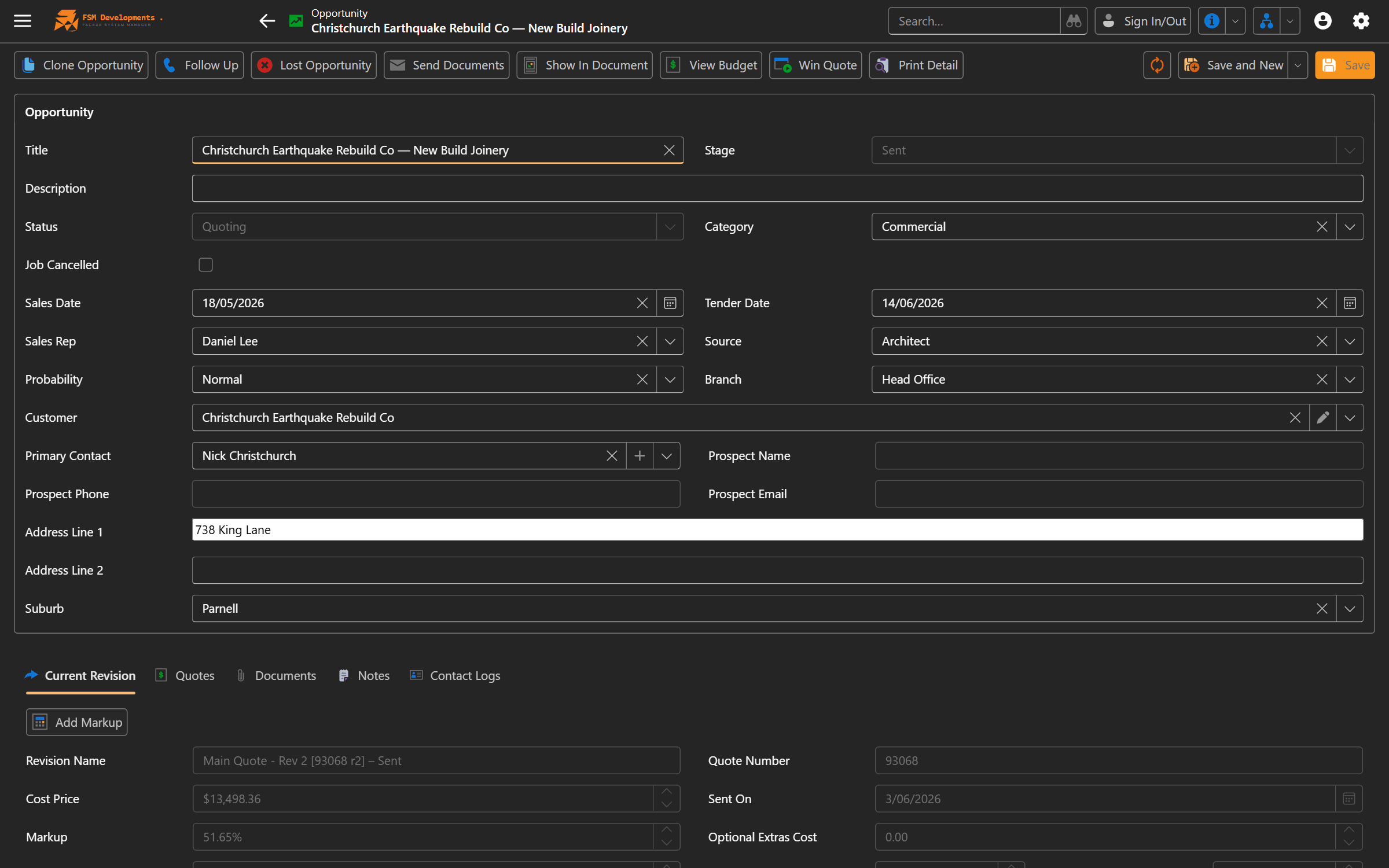
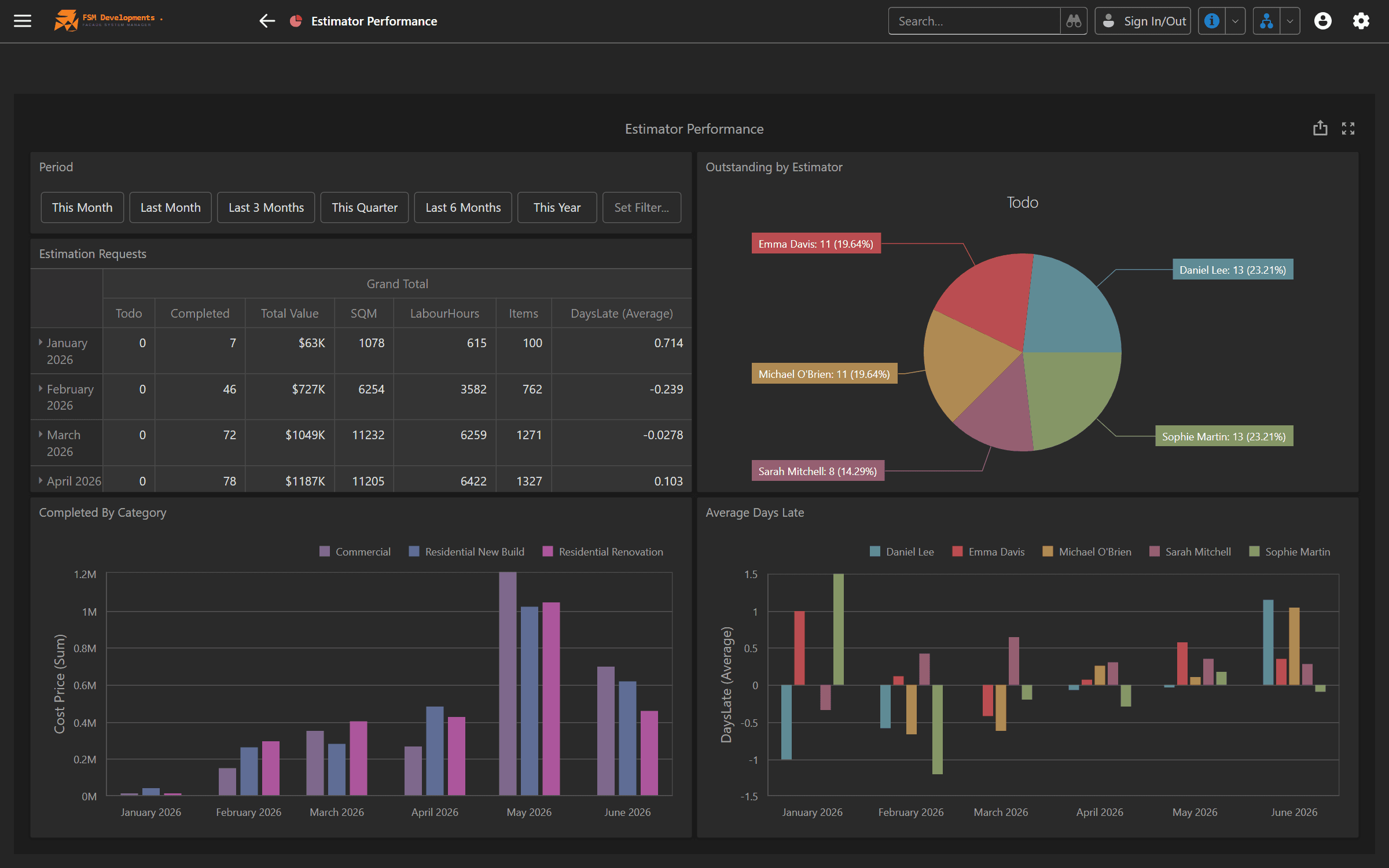
FSManager opportunity detail view in the Quoting stage
Quoting & Sales is included in FSManager Lite and above
See how Quoting & Sales fits into the full FSManager platform.
Try Before You Buy
Enter your email to get instant access to a live demo — no sign-up, no commitment.
Demo resets daily with sample data · Valid for 7 days · Shared read-only access